

Spaghetti carbonara
- Rating
- 5
- Time
- 25 min
- Cuisine
- Italian
- Status
- Cooked





























Waffle, the everything-library
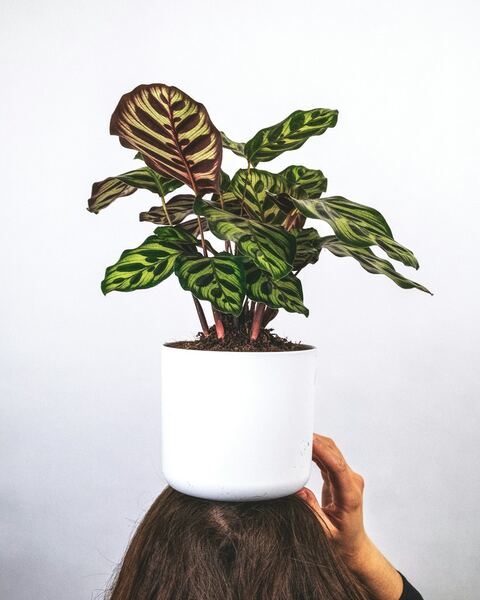
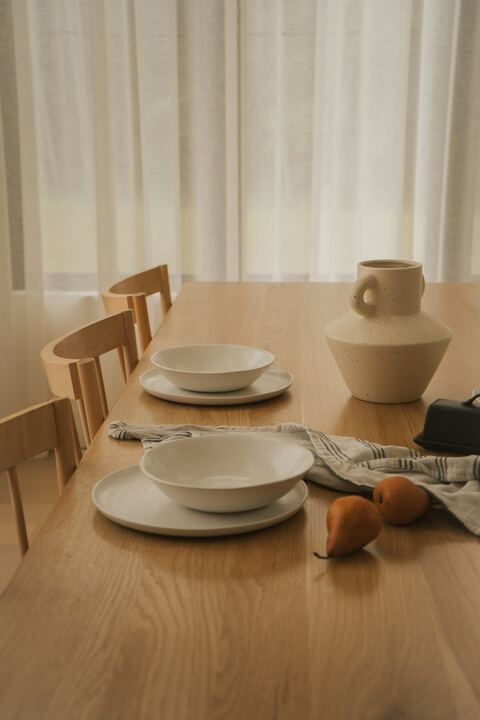
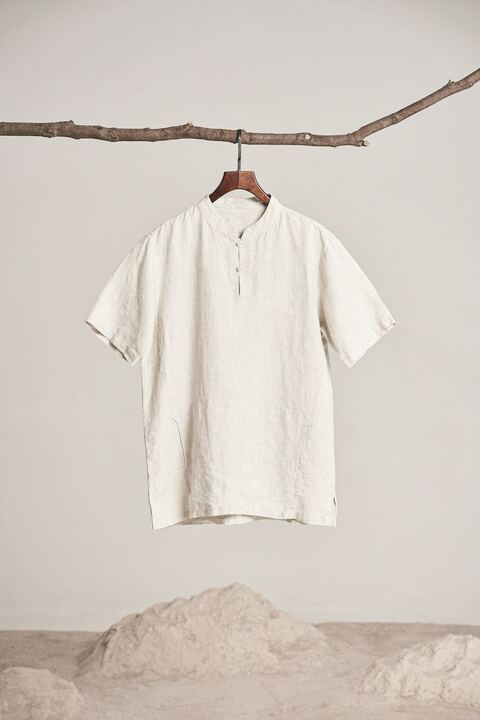
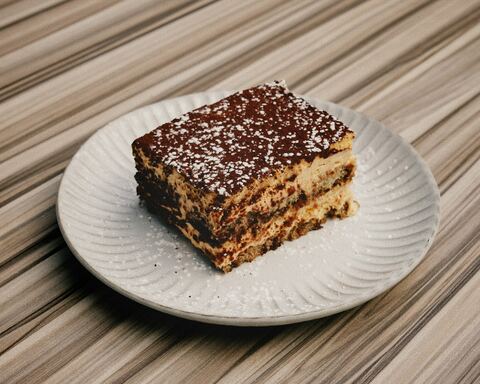
Recipes, trips, plants, clothes, books, links, and notes, together in ordinary folders, each shown the way it deserves. No account needed. Everything stays on your device, as ordinary files you own.
Free to use. For Mac, the web, iPhone, Android, and your browser.
01 — What it is
Trip ideas, recipes, a wardrobe, receipts, reading, budgets. In Waffle they are all the same kind of thing: an item in a folder, with a picture and a few properties you can sort and filter.
Everything gets a thumbnail and can carry properties like a date, a price, a place, or a rating. Notes, links, and files mix, sort, and filter together instead of living in separate apps.
Waffle picks a sensible look for each folder from what is in it, and offers quiet suggestions, like a trip planner for a trip folder. You accept or ignore them. Nothing changes until you say so.
A Waffle library is a normal folder. Notes are Markdown files; everything else is the file itself. Open it in Finder, in Obsidian, or in any editor, with or without Waffle running.
02 — Views
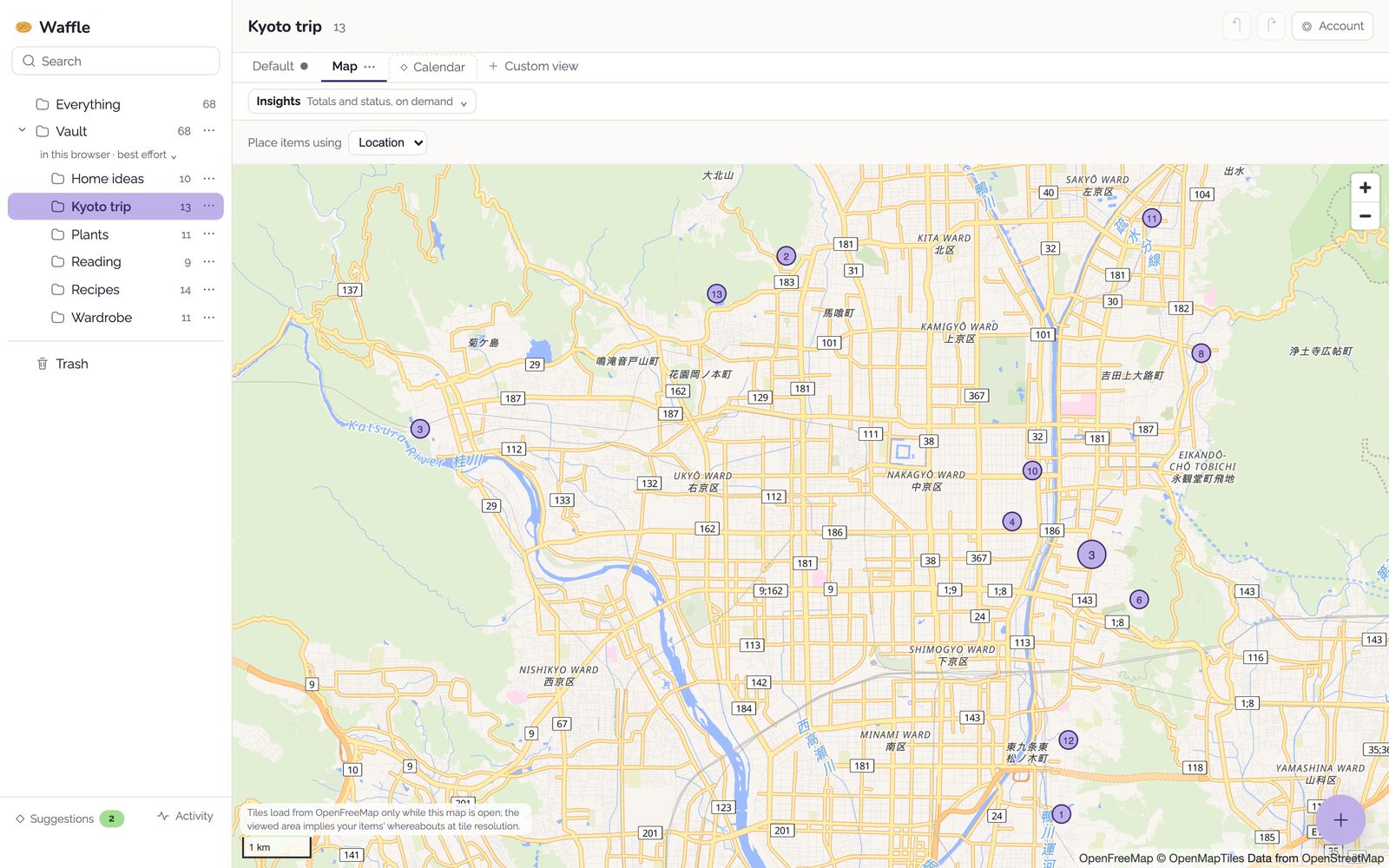
A folder of places wants a map. A folder of bookings wants a calendar. A budget wants a table. Waffle lets one folder have several named views, and you switch between them with a tab. Below, the same thirteen notes from a Kyoto trip folder.







A diagram drawn from the sample library’s Kyoto trip folder: its photos, dates, categories, and coordinates. The screenshots beside it are the app itself.
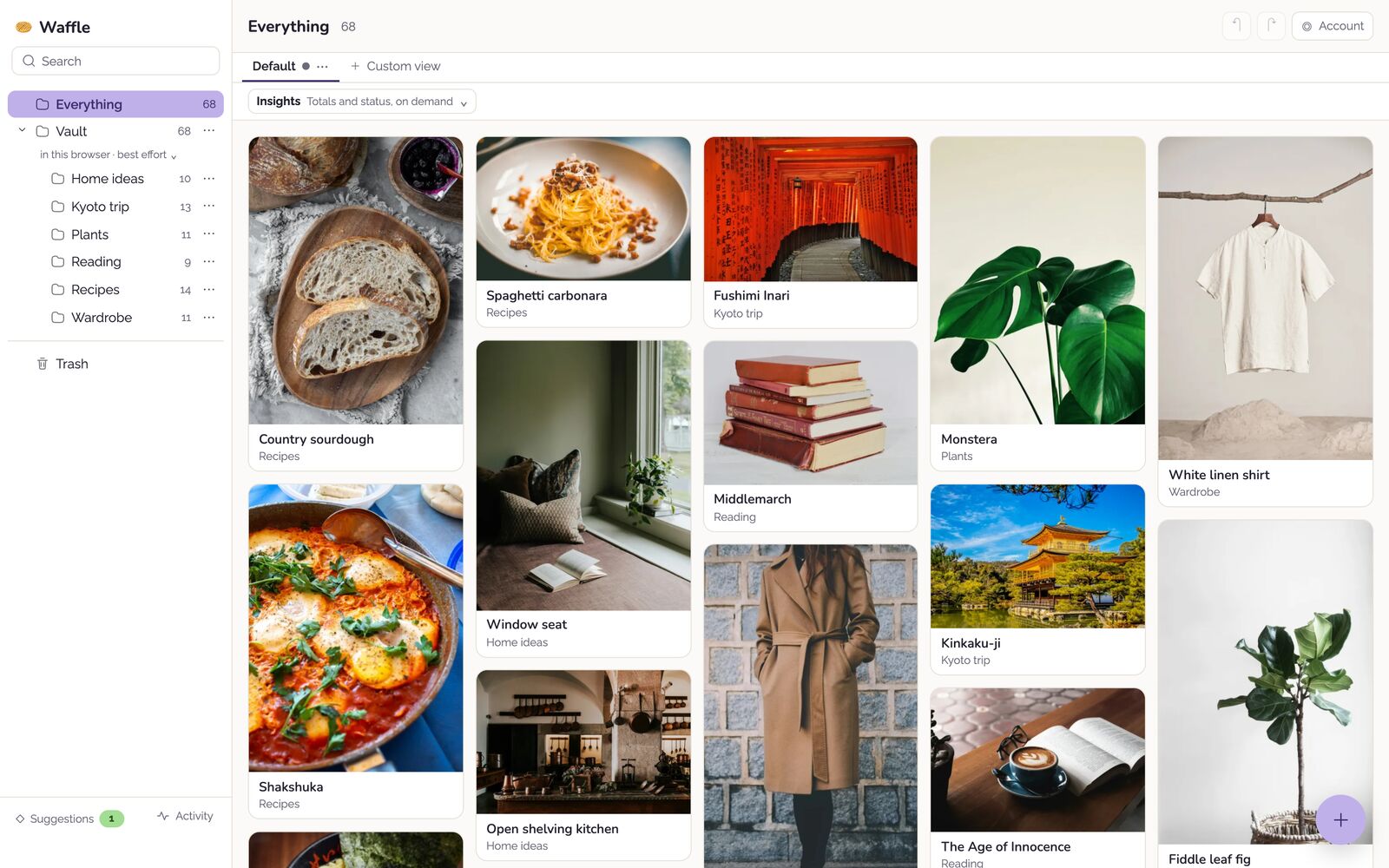
Masonry
Waffle chooses a layout from what a folder holds. A folder full of photos opens as a wall; one full of documents and links opens as a list. Nothing is written until you change it.
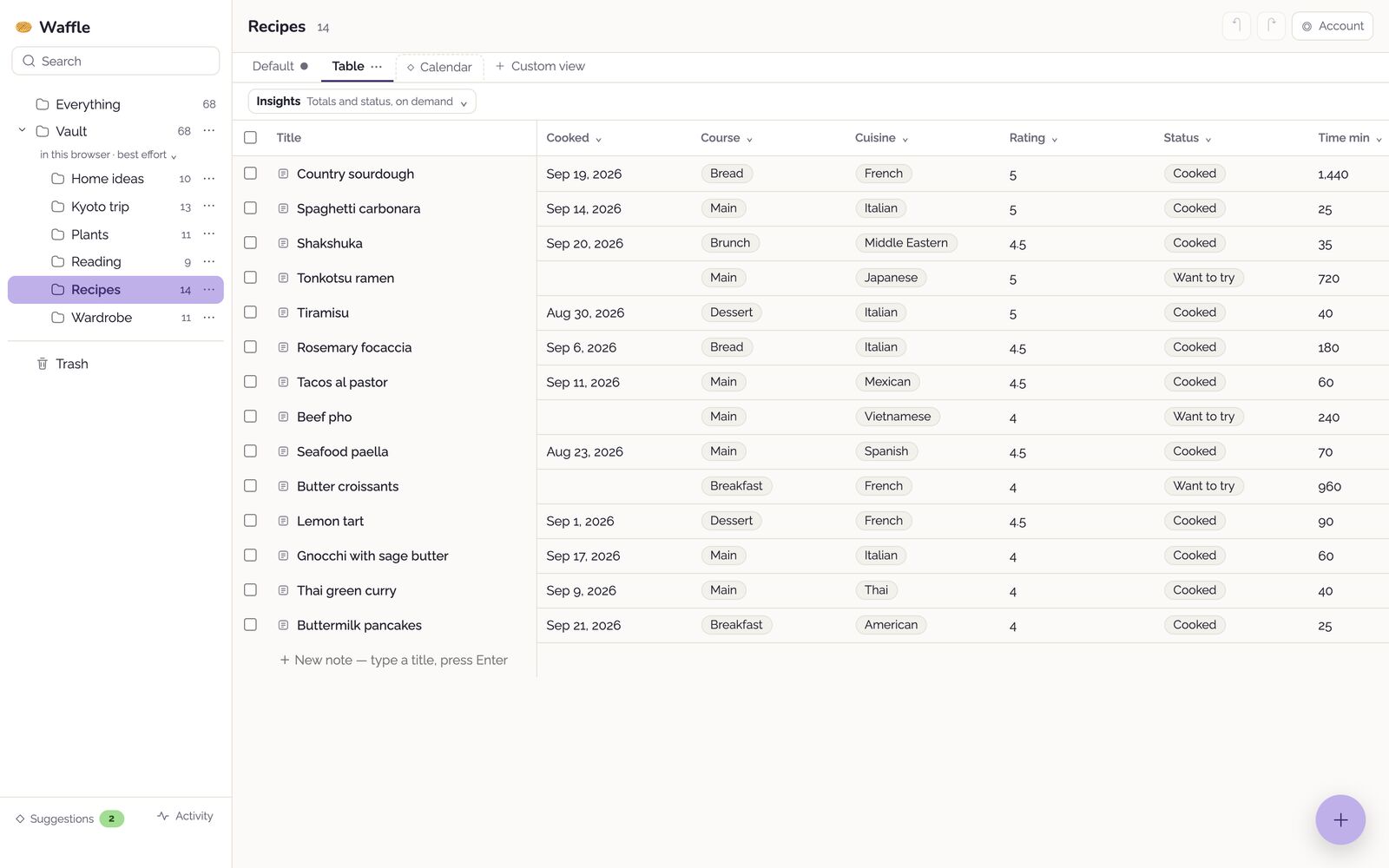
Table
Every property becomes a column you can sort and filter: dates, ratings, status, prices. Edit a cell and the note’s own file changes.
Map
Items with a location land on a map, so a trip folder becomes the trip.
Calendar
Bookings, plans, and anything else with a date. Waffle noticed this folder had dates and suggested the view.
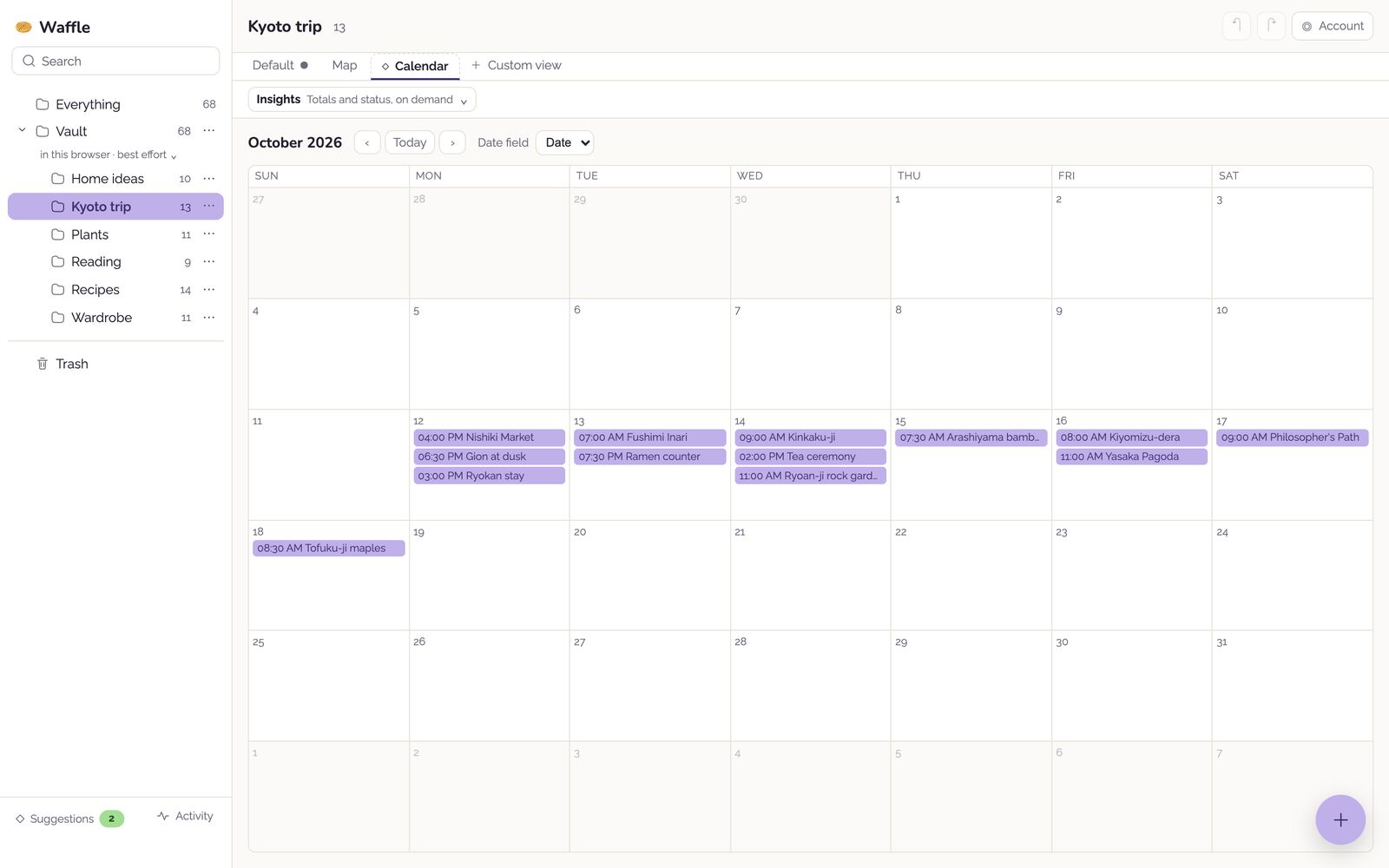
Eight layouts, and a folder can keep as many named views as you like. Views are saved as .base files next to your notes, the same file format Obsidian’s Bases uses, so they travel with the folder.
03 — Your files
On a Mac, your Waffle library is a folder you can see. Every card on the wall is a file in it: a note is Markdown with its properties at the top, a photo is just the photo.
Spaghetti carbonara.md
---
rating: 5
time_min: 25
cuisine: Italian
course: Main
status: Cooked
cooked: 2026-09-14
tags: [weeknight]
---
![[attachments/carbonara.jpg]]

Guanciale, pecorino, egg yolks, lots
of black pepper. No cream. Toss off
the heat with a splash of pasta water.Recipes.base holds its Table view.
.waffle folder inside the library.04 — Capture
From your browser. The Waffle extension for Chrome, Firefox, and Safari saves the page you are on and suggests the folder it belongs in.
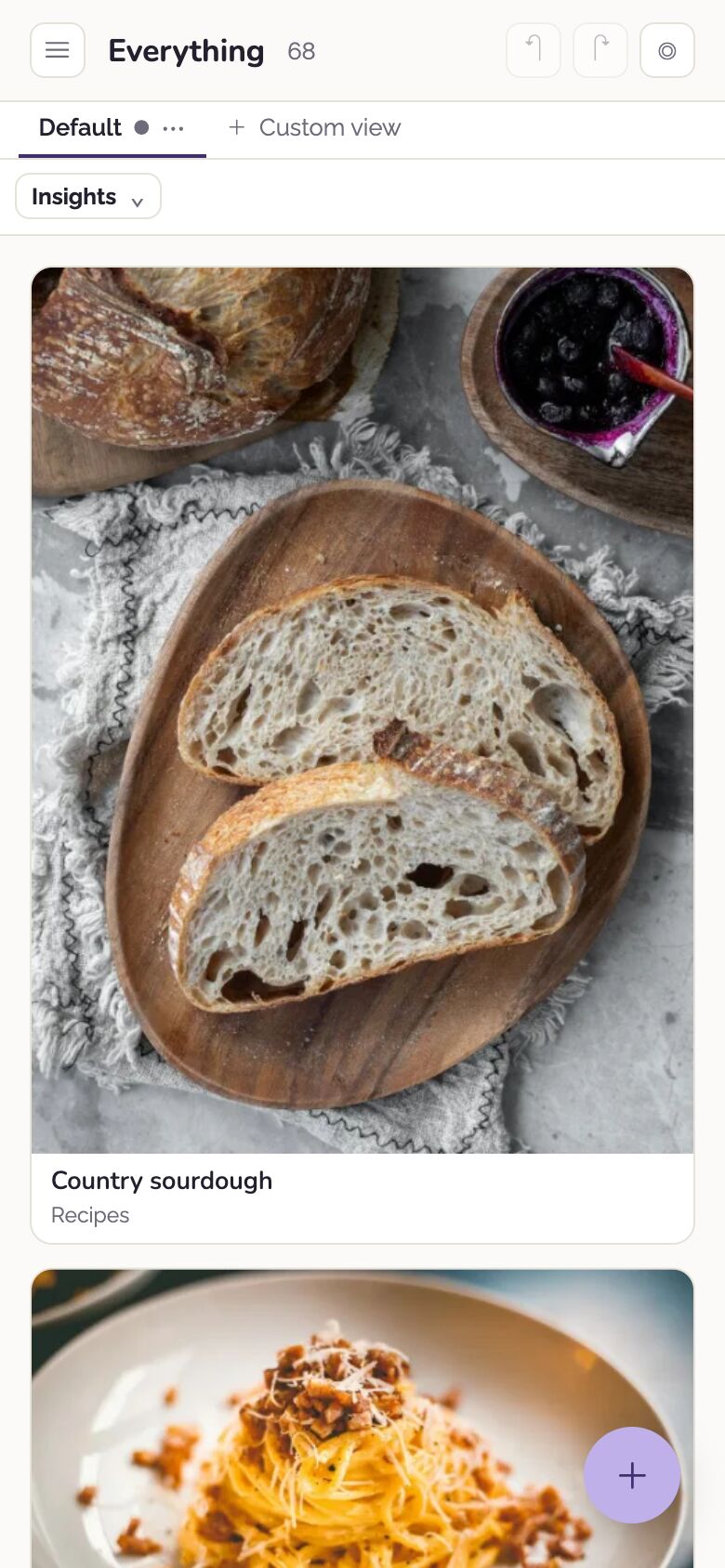
From your phone. Share a link, a photo, or a file to Waffle from any app’s share sheet.
From your Mac. Quick Add (⌘⇧A) opens a capture window from anywhere.
Inside Waffle. One + button for a new note, a link, files, or a batch of photos.
What you capture goes into your own library. It does not pass through a Waffle server on the way.
05 — Sync and sharing
Your library lives on your own device, and Waffle works fully there, forever, without an account. If you want it on more devices, or want to share a folder, two optional features do that, and both are end-to-end encrypted.
Keep your library in step across your Mac, your phone, and the web. Your files stay on your devices; what travels between them is encrypted on your device first, with keys only your devices hold.
Invite people to a folder, like a trip you are planning together. Its contents are encrypted for the people you invite. Our servers only ever hold them encrypted.
Sync is optional and paid; everything else is free. Pricing will be announced at launch.
06 — Privacy
Using Waffle on one device never needs an account. Signing in, when you want Sync, does not upload anything by itself; syncing and sharing are separate steps you take on purpose.
No analytics, no telemetry, no crash reporting, no advertising. This website doesn't track you either: no cookies, no analytics, no third-party requests.
Waffle keeps your library on your own device. If you turn on Sync or share a folder, anything that leaves your device is encrypted there first, and the keys stay on your devices. Our servers only ever hold your content encrypted, and cannot read it.
When you delete something, Waffle moves it to a Trash folder inside your own library. The app never permanently erases your files.
The fine print. Encryption keeps what you sync and share unreadable to our servers. It cannot guarantee that a server always shows your devices every latest change, so a misbehaving server could hold back updates, though it still could not read them. Removing someone from a shared folder stops them seeing new changes; it cannot take back what they already downloaded. The full account is in the privacy policy.
07 — Get Waffle
Start with the Mac app if you can: it keeps your library as a real folder on your Mac.
The desktop app. Your library is a real folder you can see, back up, and open in other apps. Requires a Mac with Apple silicon.
Try Waffle and capture on the go in a modern browser. A browser keeps its library in its own storage, which you can't open in Finder and the browser may clear, so keep your main library in the Mac app.
Browse your library and save from any app's share sheet.
Available at launch
Save the page you are on to Waffle, for Chrome, Firefox, and Safari.
Available at launch
08 — FAQ
No. Waffle on one device works without an account, permanently. You only sign in to use Sync or shared folders.
Yes. Notes are plain Markdown files with YAML frontmatter, and a saved link is a Markdown note too. You can open an existing Obsidian vault in Waffle, and what Waffle writes stays readable in Obsidian. Saved views are .base files, the format Obsidian's Bases uses.
Waffle keeps its own bookkeeping in a hidden .waffle folder inside the library.
Waffle itself is free. Sync is an optional paid add-on, and its pricing will be announced at launch.
On your own device, your library never leaves it unless you choose to sync or share. With Sync and shared folders, content is encrypted on your devices and the keys stay there, so the storage provider cannot read it on its own.
The exact claim, and what it does not cover, is spelled out in the privacy section and the privacy policy.
In the United States. Only encrypted data is stored there.
Not at launch. The desktop app is for Macs with Apple silicon; on other computers you can use the web app.
Email support@waffle.page. The same address takes security reports.